User Guide
Once your license is activated, you're just 4 steps away from your first automated maintenance run.
Follow the steps below in order to get set up.
What is SSH & WP-CLI? How to Get Your Key
Before registering an SSH profile in Step 1, you need to prepare an SSH key file. If this is your first time, start here.
SSH is a secure protocol for connecting to your server over the internet. It allows WP Maintenance Manager to run updates and database backups directly on the server — without installing any plugin on your WordPress site.
WP-CLI is a command-line tool for managing WordPress. Most major hosts (SiteGround, Bluehost, DreamHost, A2 Hosting, etc.) ship it pre-installed. On hosts without a pre-installed wp, you can place it under ~/bin/wp via SSH, or use the app's "🔍 Diagnose" button to get a suggested configuration.
Found next to the "Test Connection" button in the SSH profile editor. It connects to your server in read-only mode, observes the WP-CLI environment, and proposes a suggested WP-CLI Path as a best-effort reference. Empirically tested across 4 host types. The suggestion is not guaranteed to be correct — please verify with the connection test before saving.
How Public & Private Keys Work
SSH uses a key pair instead of a password.
- Private key (your key) — A file stored on your computer. Treat it like a bank card: never share it with anyone.
- Public key (the lock on the server) — Data registered on your server. It only opens with your matching private key.
Only when both the key and the lock are in place can you securely connect to your server.
How to Generate Your SSH Key — By Host
- In Site Tools, go to Devs → SSH Keys Manager.
- Enter a name and click Create to generate the key pair.
- Click Actions → Private Key, copy the text, and save it as a file on your computer (e.g.
~/.ssh/siteground.pem). - Enter that file path in the Private Key Path field in Step 1.
18765 in the SSH Port field.How to Enter the Private Key Path & Set Up the .ssh Folder
Move your downloaded key file into the .ssh folder on your computer, then enter that path in the app. Because .ssh is a hidden folder, follow the steps below to find or create it.
🍎 Mac
First, check whether the .ssh folder already exists:
- Open Finder and navigate to your home folder via Go → Home.
- Press Command + Shift + . to reveal hidden files and folders.
- If you see a
.sshfolder, move your key file there.
If the .ssh folder does not exist, create it:
- Using Finder: With hidden files visible, right-click inside your home folder → New Folder → name it
.ssh - Using Terminal: Run
mkdir ~/.ssh
Move your key file into .ssh, then enter ~/.ssh/your-key-file.pem in the Private Key Path field.
🪟 Windows
First, check whether the .ssh folder already exists:
- Open File Explorer. In the top menu, go to View → check "Hidden items" (Windows 11: View → Show → Hidden items).
- Type
%USERPROFILE%in the address bar and press Enter. - If you see a
.sshfolder, move your key file there.
If the .ssh folder does not exist, create it:
- Using File Explorer: Right-click inside
%USERPROFILE%→ New → Folder → name it.ssh - Using PowerShell: Run
mkdir $HOME\.ssh
Move your key file into .ssh, then enter C:\Users\YourName\.ssh\your-key-file.pem in the Private Key Path field.
Private key file permissions
If the private key file's permissions are too open, SSH will refuse to authenticate with errors like UNPROTECTED PRIVATE KEY / Permissions are too open / bad permissions. The check is enforced by OpenSSH on your computer (Mac/Windows), not by the hosting provider (Xserver / SAKURA Internet / Heteml etc.), so once you set it correctly it works for every host.
🍎 Mac / Linux (manual)
Run this in Terminal (replace the path with your own):
chmod 600 ~/.ssh/your-key-file🪟 Windows (manual)
- Right-click the key file → Properties → Security tab → Advanced.
- Click Disable inheritance at the top → choose "Remove all inherited permissions from this object".
- Select every remaining entry that is not your current user (e.g.
Users,Everyone,Authenticated Users) and click Remove. - If your user is no longer listed, click Add, pick your username, and grant Full Control.
- OK to confirm.
Register an SSH Profile
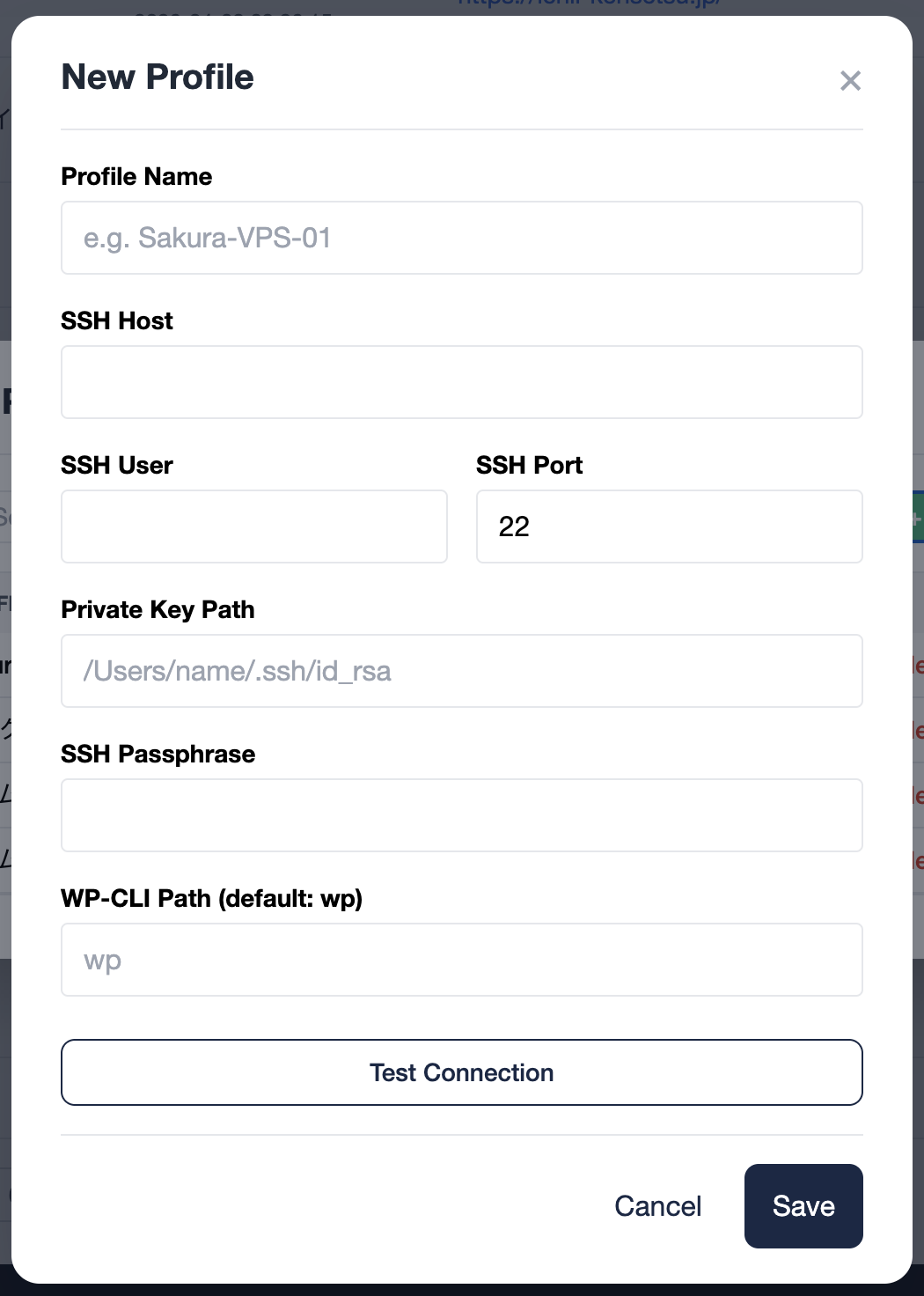
Register your SSH connection details as a "profile." When adding a site, simply select a profile to complete the SSH setup. Updating a profile automatically applies to all linked sites.
After filling in the fields, use the "① SSH Connection Test" and "② WP-CLI Test" buttons to verify everything before saving. This catches misconfigurations before they become hard-to-diagnose errors.
| Field | Description | Type |
|---|---|---|
| Profile Name | A recognizable label for this profile (e.g. Xserver Production) |
Required |
| SSH Host | ⚠ NOT your domain (example.com) or WordPress URL. Enter the SSH hostname provided by your hosting company. Find it in your hosting control panel under "SSH Access", "Server Info", or "Connection Details" (most "Unable to connect to port XXXX" errors come from accidentally putting a domain name here) |
Required |
| SSH User | Your SSH login username — usually the same as your FTP username on shared hosting | Required |
| SSH Port | Usually 22 (e.g. SAKURA Internet). Some hosts use different ports (e.g. Xserver: 10022, ConoHa WING: 8022) — check your hosting documentation |
Required |
| Private Key Path | Path to your SSH private key file (e.g. ~/.ssh/id_rsa). See how to prepare the .ssh folder |
Recommended |
| SSH Passphrase | Only required if your private key is protected by a passphrase. Leave blank if no passphrase is set | Optional |
| WP-CLI Path | The command used to invoke WP-CLI on the server. Use wp or an absolute path (e.g. /usr/local/bin/wp). Leaving it blank is treated as wp internally, so if the server's PATH includes the wp command, no input is needed. Refer to your hosting provider's documentation |
Optional |
Verify on the server
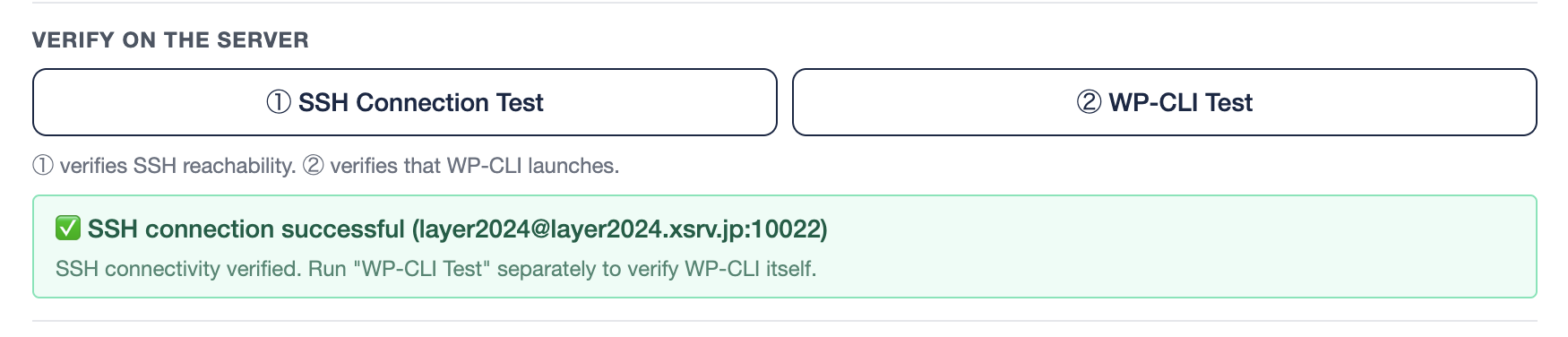
Two verification buttons let you sanity-check before saving. Catching misconfigurations here saves a lot of debugging time later.
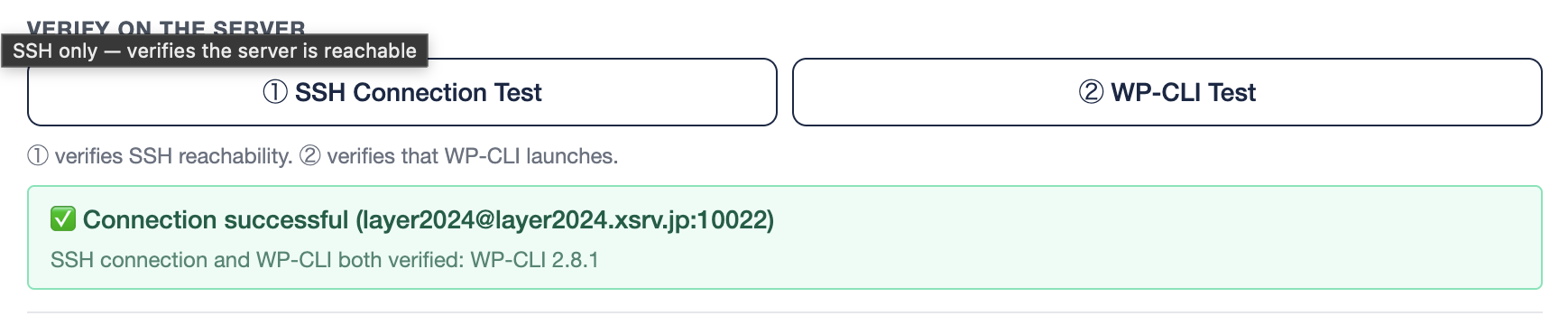
- 1 "① SSH Connection Test" button — verifies SSH reachability only (fast). Confirms your SSH host, user, and private key are correct
- 2 "② WP-CLI Test" button — after SSH succeeds, runs the WP-CLI Path command to verify it launches. Assumes ① has already passed
- 3 On success: green "✅ Connection successful" banner. On failure: red banner with the error type and the server's stderr response — follow the message to fix the setting
- Authentication failed → Check username, private key path, and passphrase
- Passphrase required → Enter the passphrase in the SSH Passphrase field and retry
- Cannot resolve hostname → Check for typos in the SSH Host field
- Connection timed out → Verify the port number or check your firewall settings
- WP-CLI not found → Verify the WP-CLI Path field, or see the "Helper: Detail Diagnosis" section below
Helper: Detail Diagnosis
Helper feature for cases where ① and ② can't pinpoint the problem. Open the "Helper: Detail Diagnosis" section in the SSH profile editor and click "🔍 Diagnose". The diagnostic observes your server in read-only mode and proposes a likely WP-CLI Path as a "best-effort reference".
- OS / shell type / HOME directory writability
- Where the
phpcommand lives (PATH or absolute paths) - Whether WP-CLI exists (system-wide or in the home directory) and runs
- GitHub reachability (used to determine whether auto-install is feasible)
When the diagnostic finds "WP-CLI missing + home writable + GitHub reachable," a "📦 Install WP-CLI Automatically" section appears as well. Use "🧪 Test in an isolated path first" to try it safely, then "📦 Install to ~/bin/wp" for production placement. Any pre-existing file is preserved automatically as wp.broken_backup_<timestamp>.
Configure Notifications
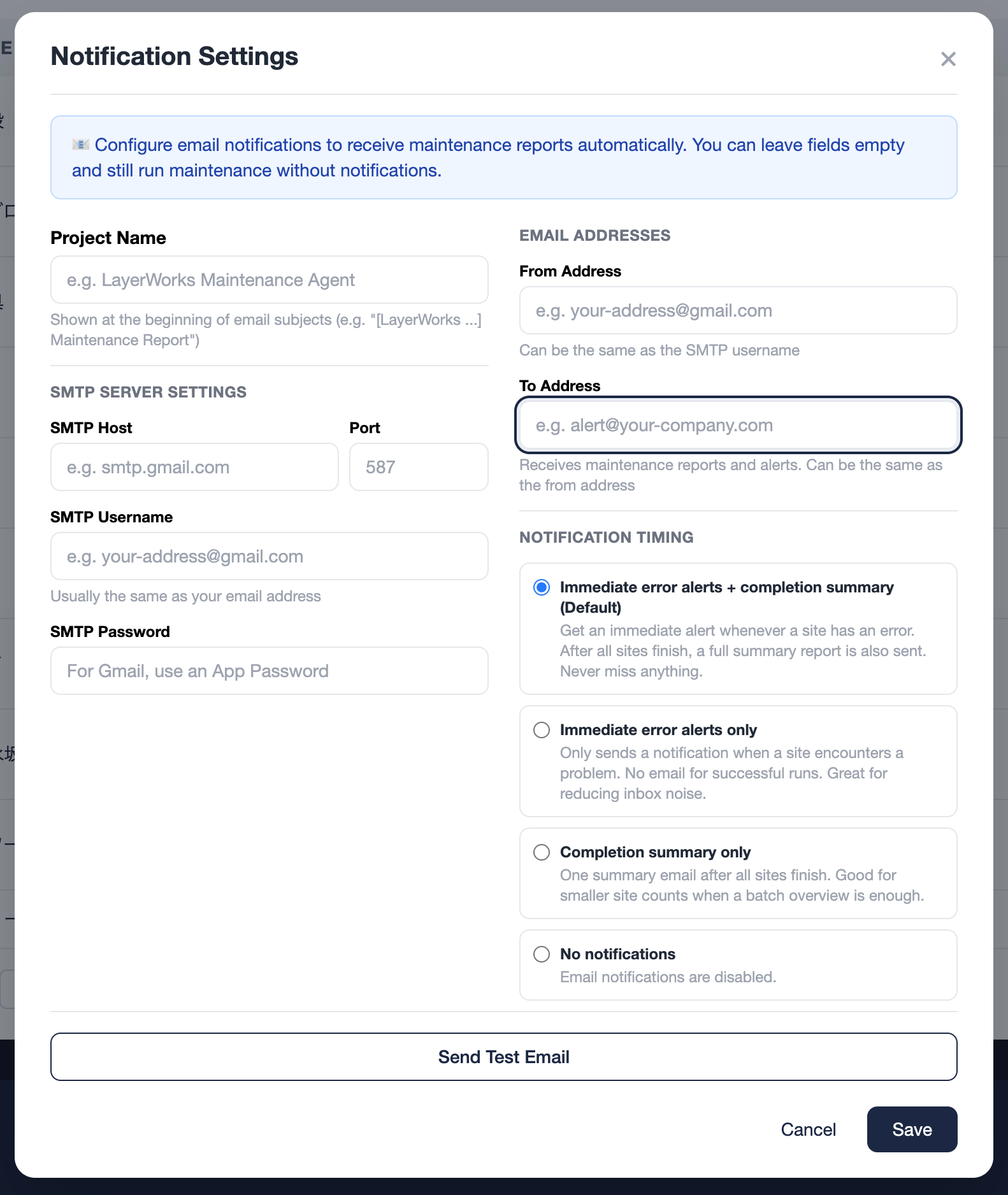
Get an email when maintenance finishes — or an immediate alert if something goes wrong. You can skip this step and use the app without notifications, but setting it up is highly recommended.
| Field | Description | Type |
|---|---|---|
| SMTP Host | Your outgoing mail server address (e.g. smtp.gmail.com) |
Required |
| Port | Usually 587 (STARTTLS) |
Required |
| SMTP Username | Usually the same as your email address | Required |
| SMTP Password | For Gmail, you must use an App Password — your regular Gmail password will not work | Required |
| From Address | Can be the same as your SMTP username | Required |
| To Address | Where reports and alerts will be delivered | Required |
| Notification Timing |
Choose from 4 notification modes: ① Errors immediately + summary (default & recommended) ② Errors only (immediate) ③ Summary only ④ No notifications |
Optional |
Register a WordPress Site
Add the WordPress site you want to maintain. You'll need your WordPress admin credentials and the SSH profile you created in STEP 1.
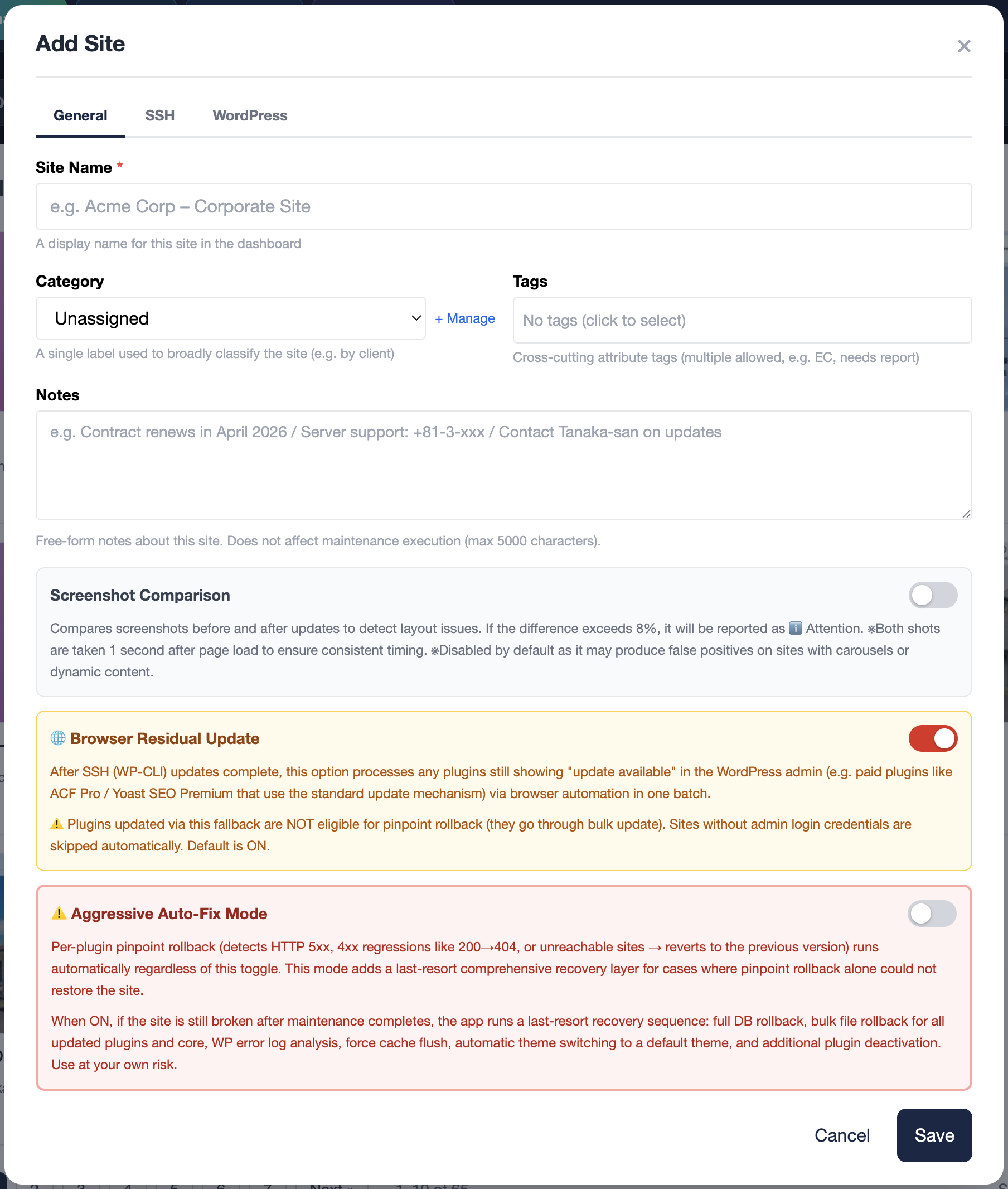
📋 General tab
| Field | Description | Type |
|---|---|---|
| Site Name | A label for this site — shown in logs and reports (e.g. Acme Corp Website). v1.6.2 improvement: Renaming a site preserves its thumbnail, before/after screenshots, and DB backup history — all tracked by a stable internal ID, so a rename never causes "comparison broken", "missing thumbnail", or "backup history reset" issues. |
Required |
| Category / Tags | Optional labels for organizing sites. Category: one per site (exclusive, with color), Tags: multiple per site (cross-cutting). Used for filtering on the site list. Register categories and tags in advance via ⚙ Settings → "Category & Tag Manager". | Optional |
| 📝 Notes | New in v1.6.4, optional. A free-form notes field (up to 5,000 characters) for site-specific context — contract renewal month, hosting provider support contact, client point-of-contact, operational caveats, anything that doesn't fit the other fields. Does not affect maintenance execution. | Optional |
| 📸 Screenshot Comparison | Automatically captures before/after screenshots and detects visual differences | Optional |
| 🌐 Browser Residual Update | New in v1.6.1, SSH mode only, default ON. After SSH (WP-CLI) updates complete, this option processes any plugins still showing "update available" in the WordPress admin (e.g. paid plugins like ACF Pro / Yoast SEO Premium that use the standard update mechanism) via browser automation in one batch. ⚠ Plugins updated via this fallback are NOT eligible for pinpoint rollback (they go through bulk update). The execution log and result email mark these entries as "step rollback disabled" | Optional |
| ⚠ Aggressive Auto-Fix Mode | Default OFF. A last-resort recovery layer for cases where pinpoint rollback alone could not restore the site. When ON, the app runs a comprehensive recovery sequence: full DB rollback, bulk file rollback for all updated plugins and core, WP error log analysis, force cache flush, automatic theme switching to a default theme (Twenty series), additional plugin deactivation, and wp doctor health check. Intended for agencies running unattended overnight maintenance. Not applied to sites without SSH | Optional |
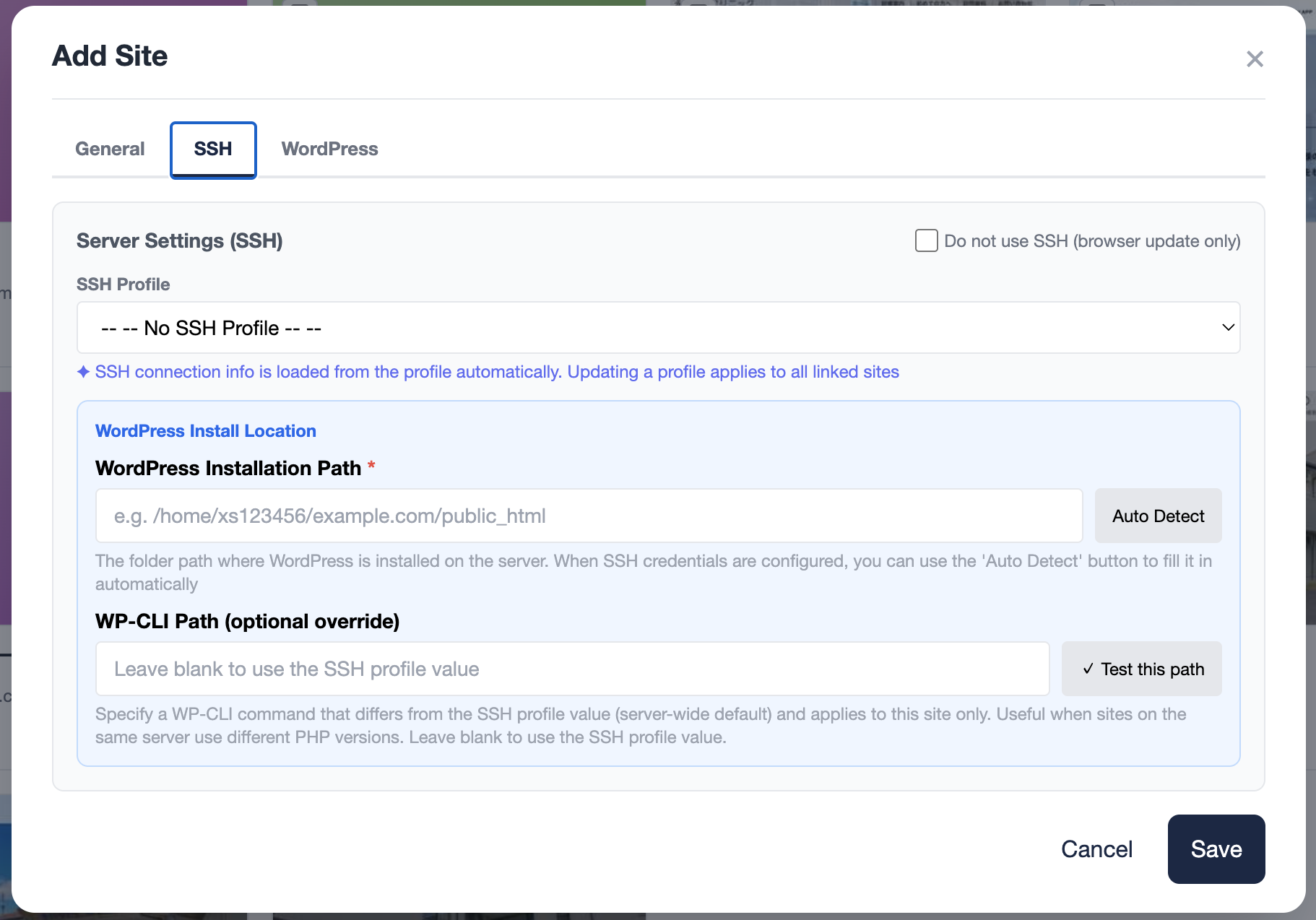
🖥 SSH tab
| Field | Description | Type |
|---|---|---|
| SSH Profile | Select the profile you created in STEP 1. SSH connection details (host, user, key, WP-CLI path) are loaded from the profile automatically, and updating the profile applies to all linked sites | Recommended |
| WordPress Install Path | The server path to the WordPress installation directory (e.g. /home/xs123456/example.com/public_html). When SSH credentials are configured, you can use the "Auto-detect" button to fill it in automatically. |
Required |
| WP-CLI Path (optional override) | New in v1.6.1. Per-site override for when sites on the same server use different PHP versions. Leave blank to use the SSH profile's WP-CLI path. To use a different PHP for just this site (e.g. /opt/php-8.3/bin/php /usr/bin/wp), enter it here. Sites with an override show a "⚙ Override" badge in the site list. See the SSH Profile section |
Optional |
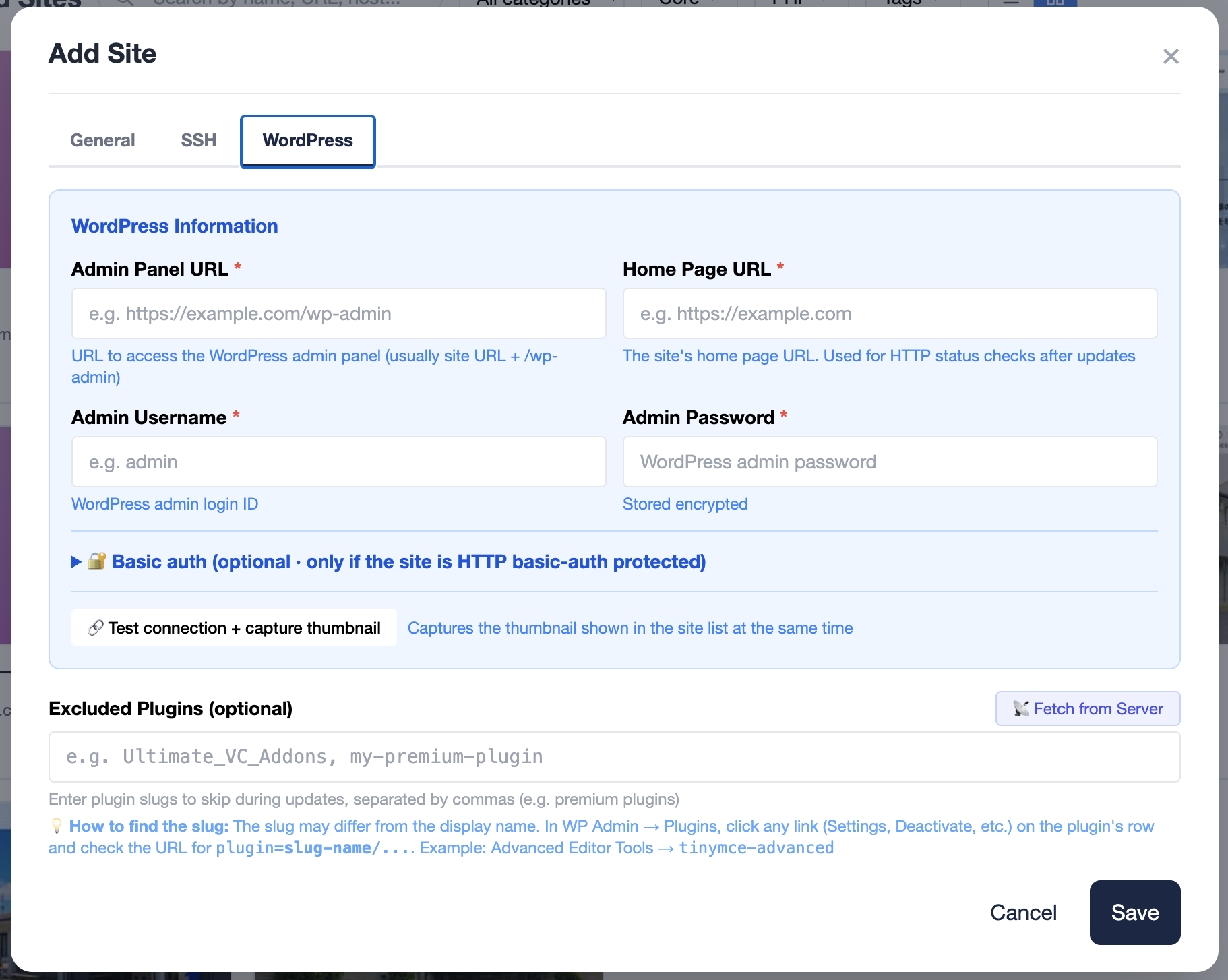
🔵 WordPress tab
| Field | Description | Type |
|---|---|---|
| WP Admin URL | Usually the site URL with /wp-admin appended |
Required |
| Site URL | The homepage URL (e.g. https://example.com). Used for the post-update HTTP health check. |
Required |
| WP Admin Username | Your WordPress login username (must have administrator role) | Required |
| WP Admin Password | Your WordPress login password. Stored encrypted. | Required |
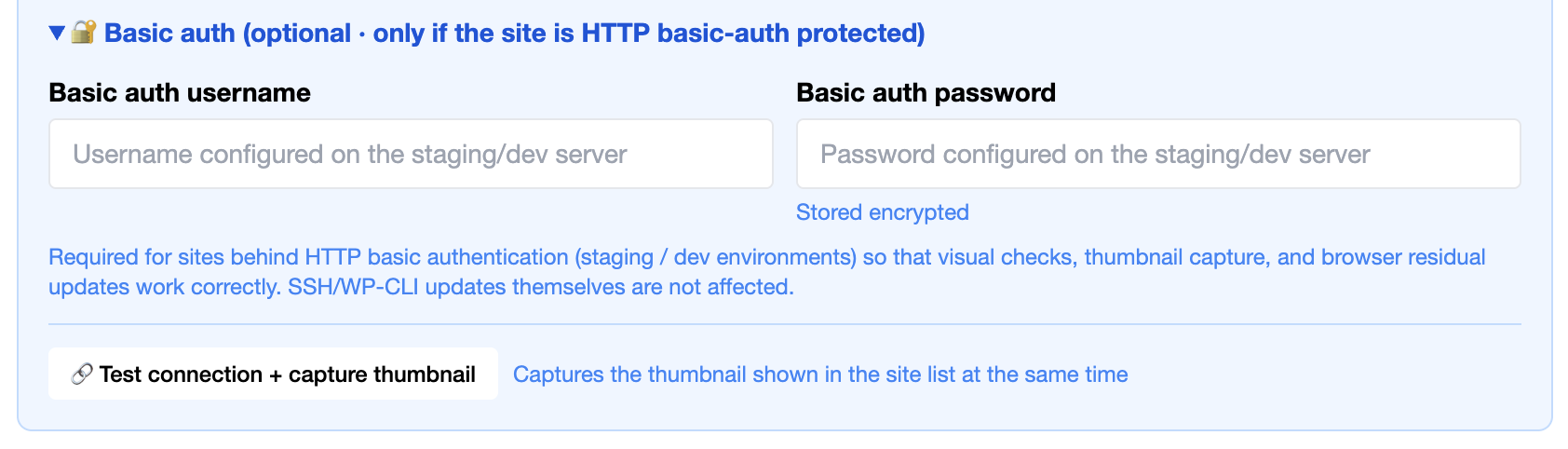
| 🔐 Basic Auth Username / Password | New in v1.6.2, optional. Required for sites protected by HTTP basic authentication (staging / dev environments) so that visual checks, thumbnail capture, and browser residual updates work correctly. SSH / WP-CLI updates themselves are not affected. Passwords are stored encrypted. Expand the "🔐 Basic auth (optional · only if the site is HTTP basic-auth protected)" section to enter credentials. The "🔗 Test connection + capture thumbnail" button inside the same section verifies connectivity and captures the site list thumbnail in one shot | Optional |
| Excluded Plugins | Plugins to skip during auto-updates. Click the "📡 Fetch from Server" button to display installed plugins as checkboxes — just check the ones to exclude. Manual entry (comma-separated slugs) is also available | Optional |
On the other hand, paid plugins like ACF Pro / Yoast SEO Premium / Elementor Pro / WP Rocket that are properly licensed and surface "update available" via the WordPress standard update mechanism can be handled by the new "🌐 Browser Residual Update" feature (v1.6.1). If you want those plugins updated rather than excluded, keep the toggle ON.
Run Maintenance
You're all set. Click "Run Maintenance" and the app will automatically perform: DB backup → core update → plugin updates → theme updates → translation updates.
- 1 Confirm your site(s) are listed in the site table (all registered sites will be included in the run)
- 2 Click "⚡ Run Maintenance". When the confirmation dialog appears, select "Run"
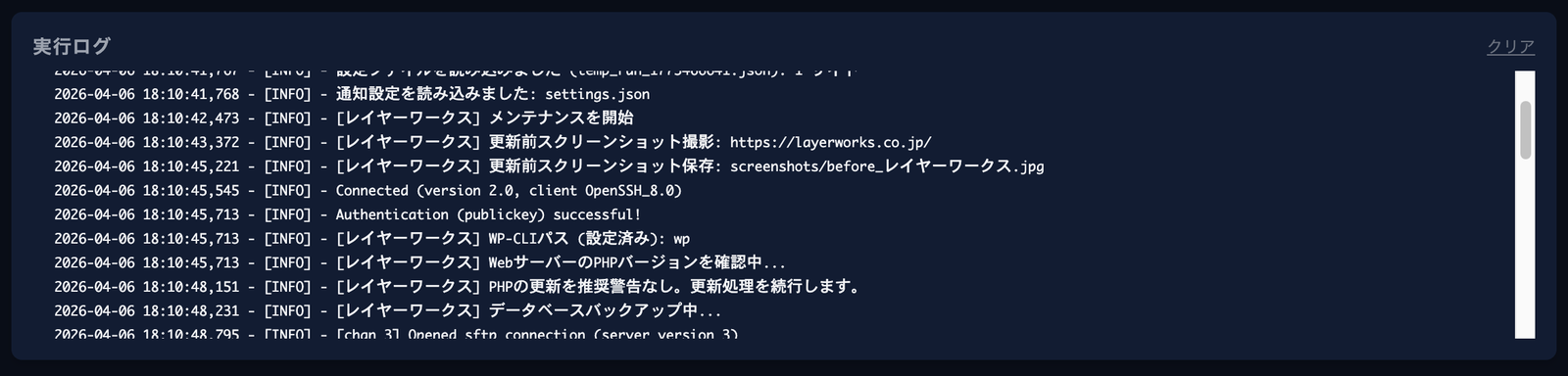
- 3 Real-time logs will stream in the console. Depending on the number of sites, this may take a few to several minutes
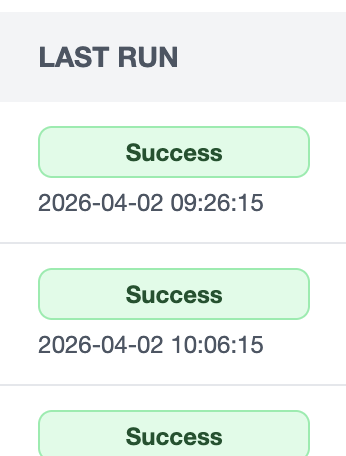
- 4 When finished, each site shows a result status (Success / Warning / Error). If notifications are configured, you'll receive an email as well
The 4 steps above cover everything you need for basic maintenance. The features below can make your workflow even more powerful.
As your site list grows, organize sites with Categories (one per site, colored, exclusive) and Tags (multiple per site, cross-cutting). For example, use Categories for "Client A" or "Internal Sites", and Tags for "EC", "Needs Report", etc. The site list lets you filter by Category and Tag — tag filters support OR / AND toggle.
A dashboard that shows every "plugin update available" across all your sites in a single view. Plugins are grouped by name so you'll see, for example, "Elementor: 3 sites need updating (4.0.0 → 4.0.8)". Expanding a row reveals which sites are affected and their before/after versions. Sites are visited in parallel via SSH, so even with many sites the scan finishes quickly. This dashboard covers plugin updates only; WordPress core, themes, and translations are handled by the regular maintenance run.
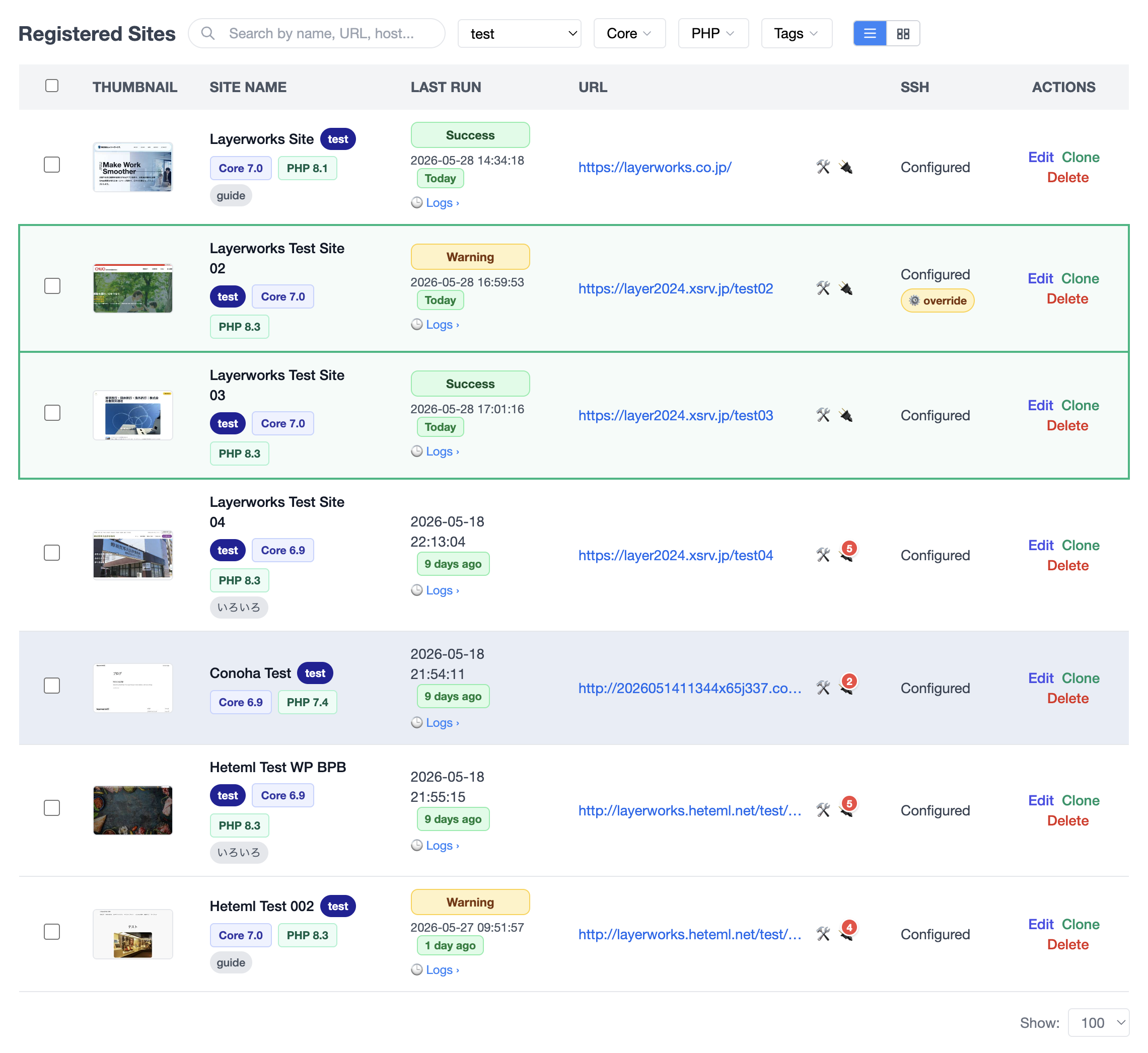
v1.6.2 significantly expanded the site list. Inspired by ManageWP's information density, these features make it easier for agencies to manage many sites at once and act quickly.
| Feature | Description |
|---|---|
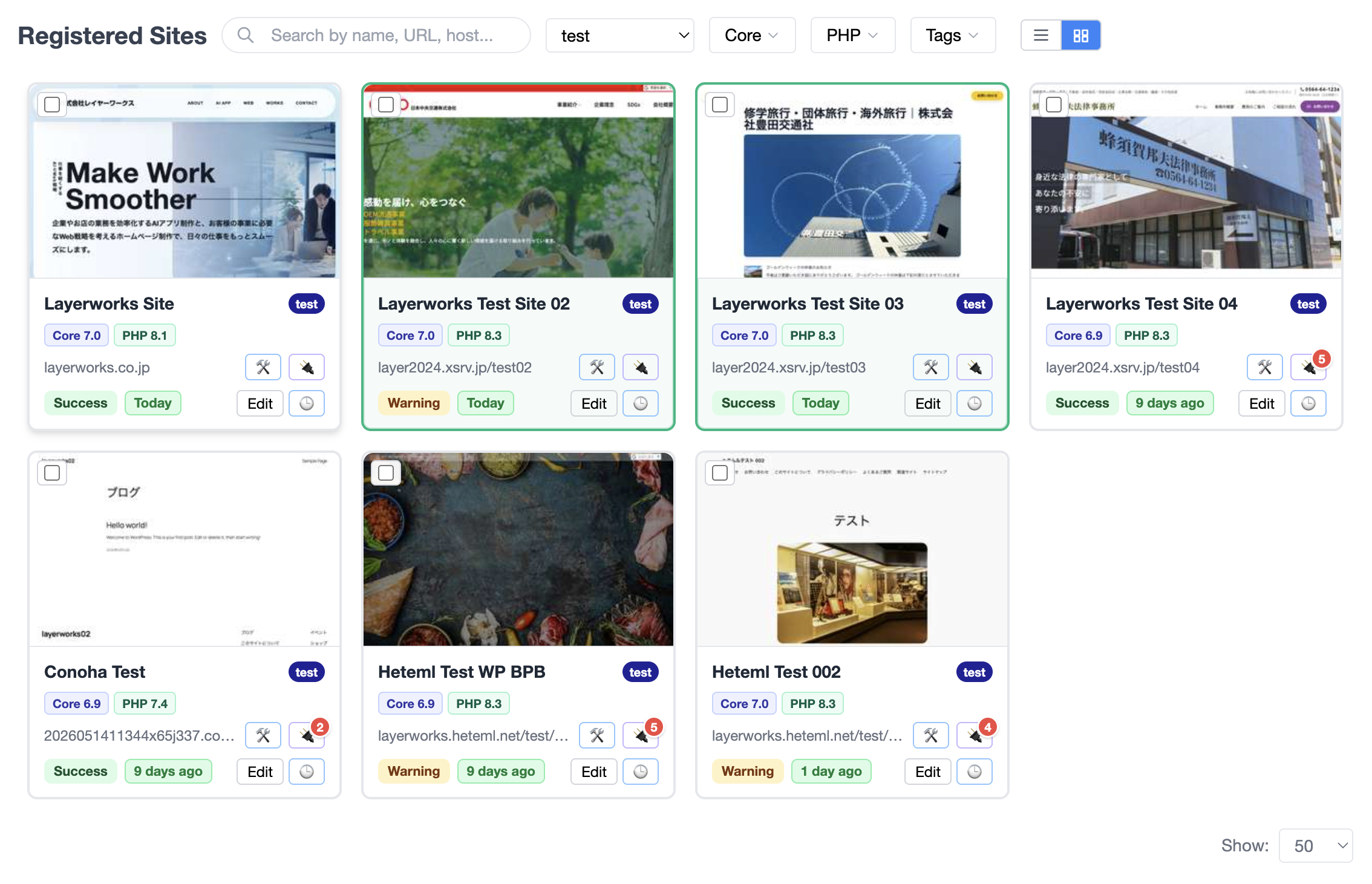
| Grid / List view toggle | A toolbar button switches between a thumbnail-rich grid view and a vertical list view. The selection is persisted in the browser and restored on the next launch |
| Site thumbnails | A 300×188 thumbnail is generated automatically after each maintenance run (from the home page screenshot) and shown on each site card. You can also capture a thumbnail manually from the "🔗 Test connection + capture thumbnail" button on the site edit screen |
| Core / PHP version badges | Each site shows a WordPress core version badge (e.g. Core 6.9) and a web-side PHP version badge (e.g. PHP 8.3). Hover for the full version (6.9.4 etc.). Both are refreshed on every maintenance run |
| Core / PHP multi-select filters | Filter the list by exact versions (e.g. 6.9.4 / 6.5.8) with multi-select checkboxes. A site count badge is shown for each version — handy for inventory tasks like "How many sites are still on PHP 7.4?" |
| 🛠 Admin panel link | A wrench icon next to the site URL opens the WordPress admin in a new tab (manual sign-in required). Handy when you frequently jump between sites and their admin panels |
| 🔌 Plugin list modal | A plug icon next to the site URL opens a modal listing every plugin installed on that site, with tabs to switch between "All" and "Update available" (read-only). Only shown for sites with SSH configured |
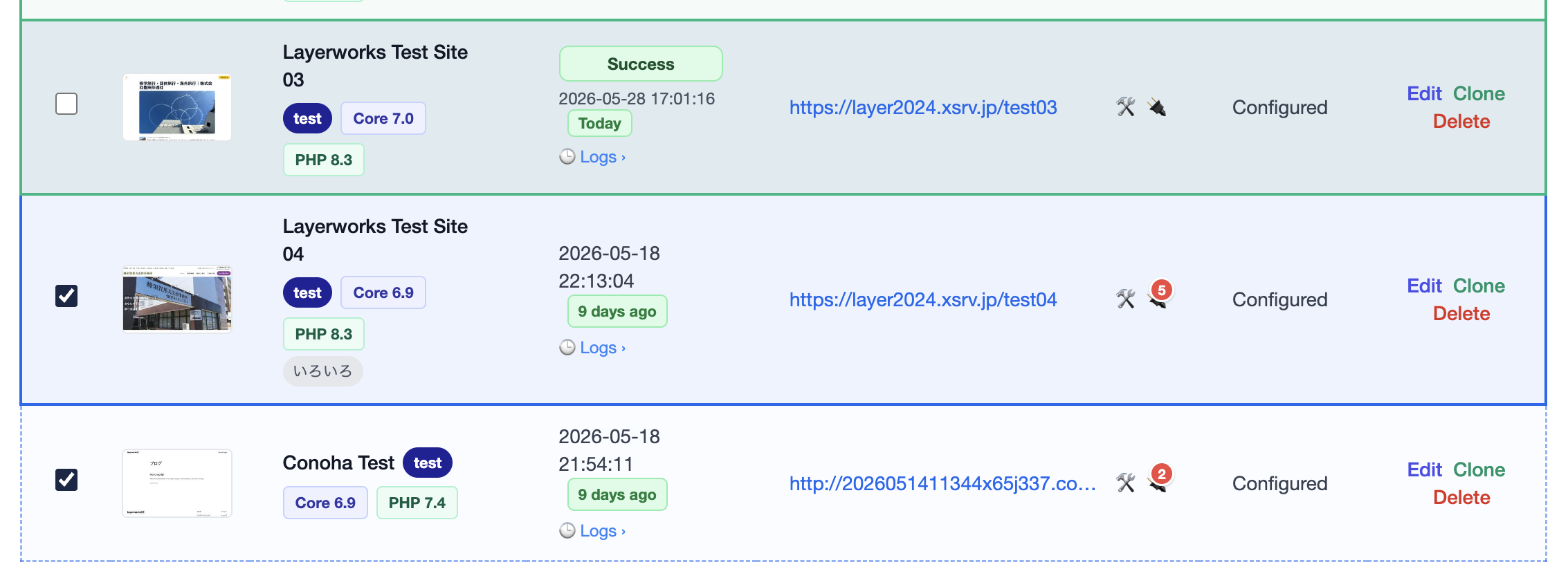
v1.6.6 significantly expands the visual information on the site list. Maintenance progress, pending update counts, and days since last maintenance are all shown via frames and badges, so you can understand the state of multiple sites without opening them.
| Feature | Description |
|---|---|
| Site frame colors (progress) | During a maintenance run, each site's frame switches between pulsing blue (running) / dashed light-blue (queued) / solid green (completed, 24h retained). Only one site is "running" at a time; the others transition queue → completed in sequence |
| 24-hour completion retention | The green "completed" frame is kept for 24 hours and survives app restarts / browser refreshes. You can look back later and see "which sites I ran today." When you start a new maintenance run, green frames on sites that aren't included in the new run are preserved (sites included in the new run restart from "queued") |
| 🔌 button "pending updates" badge | Run the cross-site "Plugin updates" dashboard from the toolbar (or open a site's individual 🔌 modal), and a red number badge appears on the top-right of each site's 🔌 icon showing pending plugin update count. Data is retained up to 30 days; hover for "last fetched: N days ago" tooltip. 100+ shows as 99+. Sites with 0 pending show no badge |
| Days-since-last-maintenance badge | Next to the last maintenance date (e.g. 2026-05-21), a relative "15 days ago" badge is shown. Color-coded by elapsed days: 0–14 d Green 15–29 d Gray 30–59 d Amber 60+ d Red |
| Persistent site selection | Site list checkbox selections no longer disappear when switching list ⇄ grid view, changing pages, or changing filters. Selections across multiple pages are preserved together. Selections are automatically cleared when the app restarts (to prevent unintended sites from being maintained from a stale selection) |
| "N selected · Clear all" chip | The toolbar shows a "10 selected · Clear all"-style chip whenever any sites are selected. Even selections spanning multiple pages can be cleared with one click of the "Clear all" link. Hidden when no sites are selected |
| Per-page setting per view | The "items per page" setting (10 / 25 / 50 / 100) is remembered separately for list view and grid view. For example, "50 items on list, 25 on grid" is a valid persisted preference. Survives app restarts |

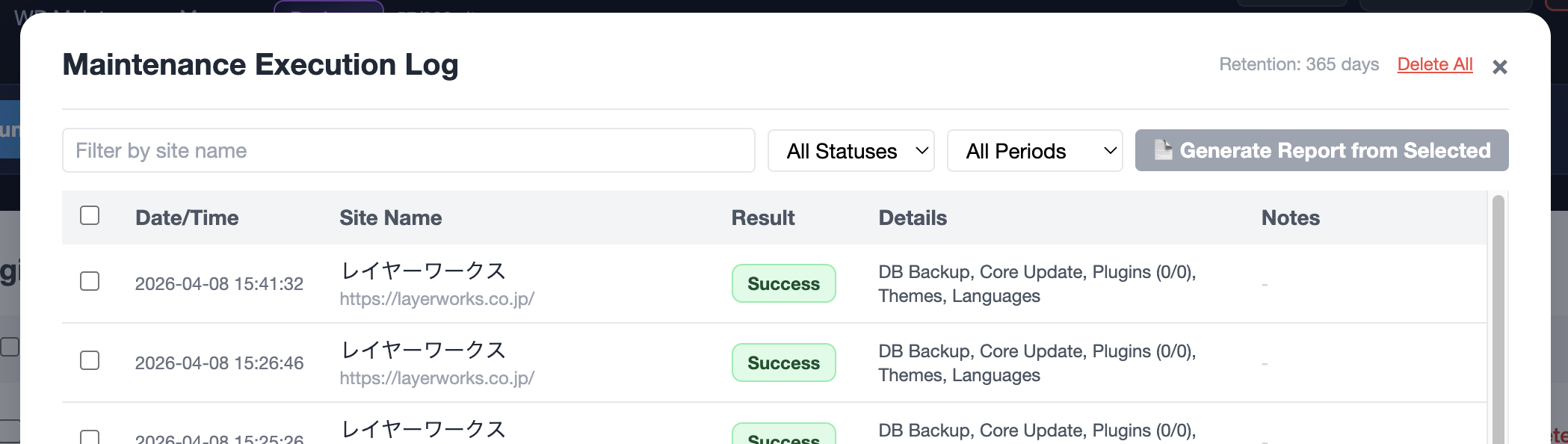
Browse all past maintenance runs in one place. Click any log entry to see which plugin versions changed, download the DB backup, or review screenshots. Logs are kept for up to 365 days.
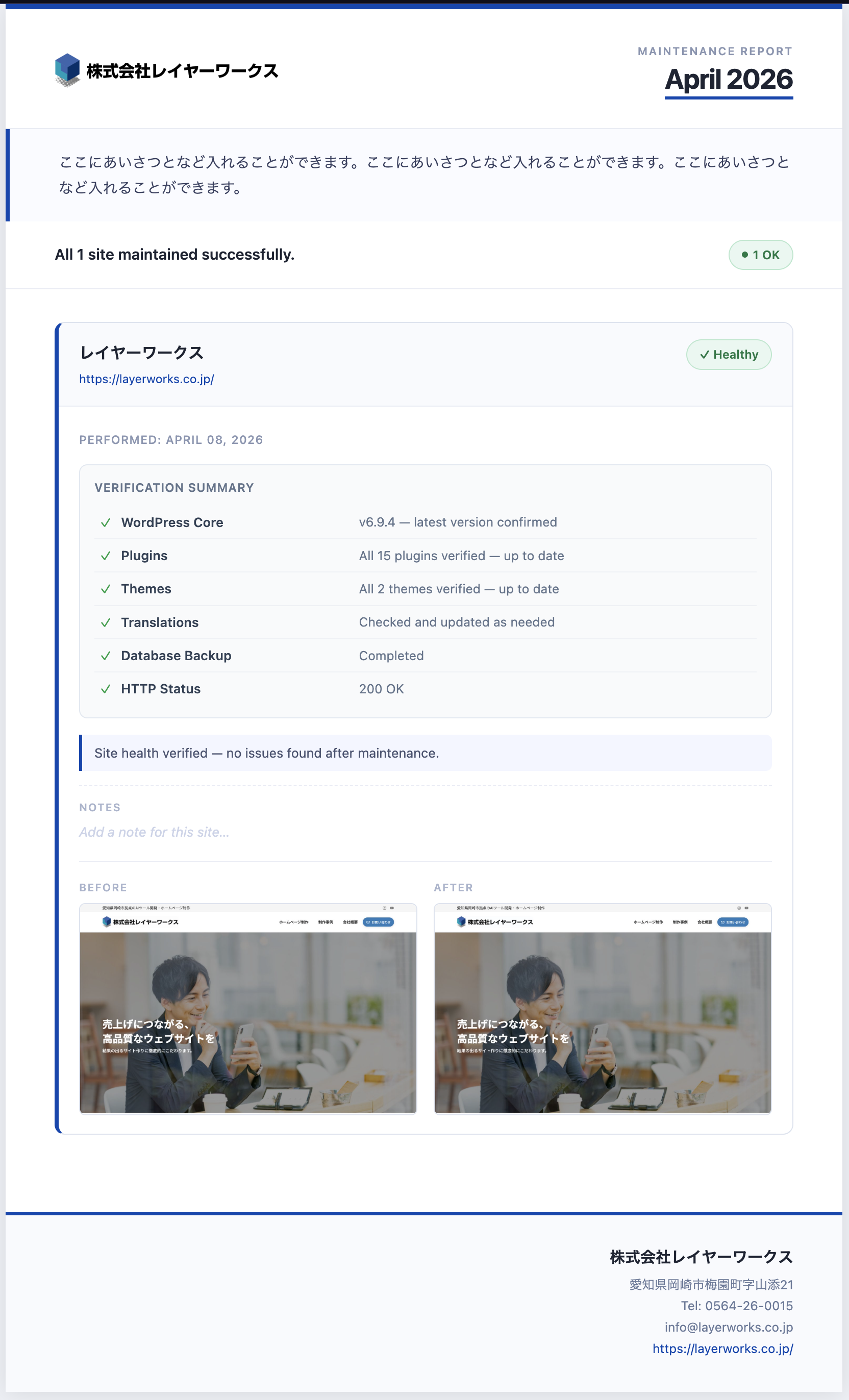
Generate client-ready maintenance reports with one click. Set your company name, logo, and accent color to produce branded PDF or HTML reports. Report preview and editing is free on all plans.
| Field | Description |
|---|---|
| Agency Name & Contact | Company name, address, phone, email, and website |
| Logo Image | Displayed in the report header. PNG / JPG recommended |
| Accent Color | Brand color used for headings and borders |
| Opening Message | Optional introductory text inserted at the top of each report |
Export all your site configurations, notification settings, SSH profiles, category and tag definitions, and more to a single file. When switching computers or recovering from a reset, just import the file and all your settings are instantly restored.
If you get stuck, our FAQ and contact form are always available.
Browse the FAQ